3.2 Dashboard Overview
Summary
This tutorial introduces the cataloguer dashboard. We explain every single feature on the dashboard for the benefit of cataloguers. After this tutorial, a cataloguer will easily be able to navigate the dashboard, setting them up for success in Sanduq.
First Look
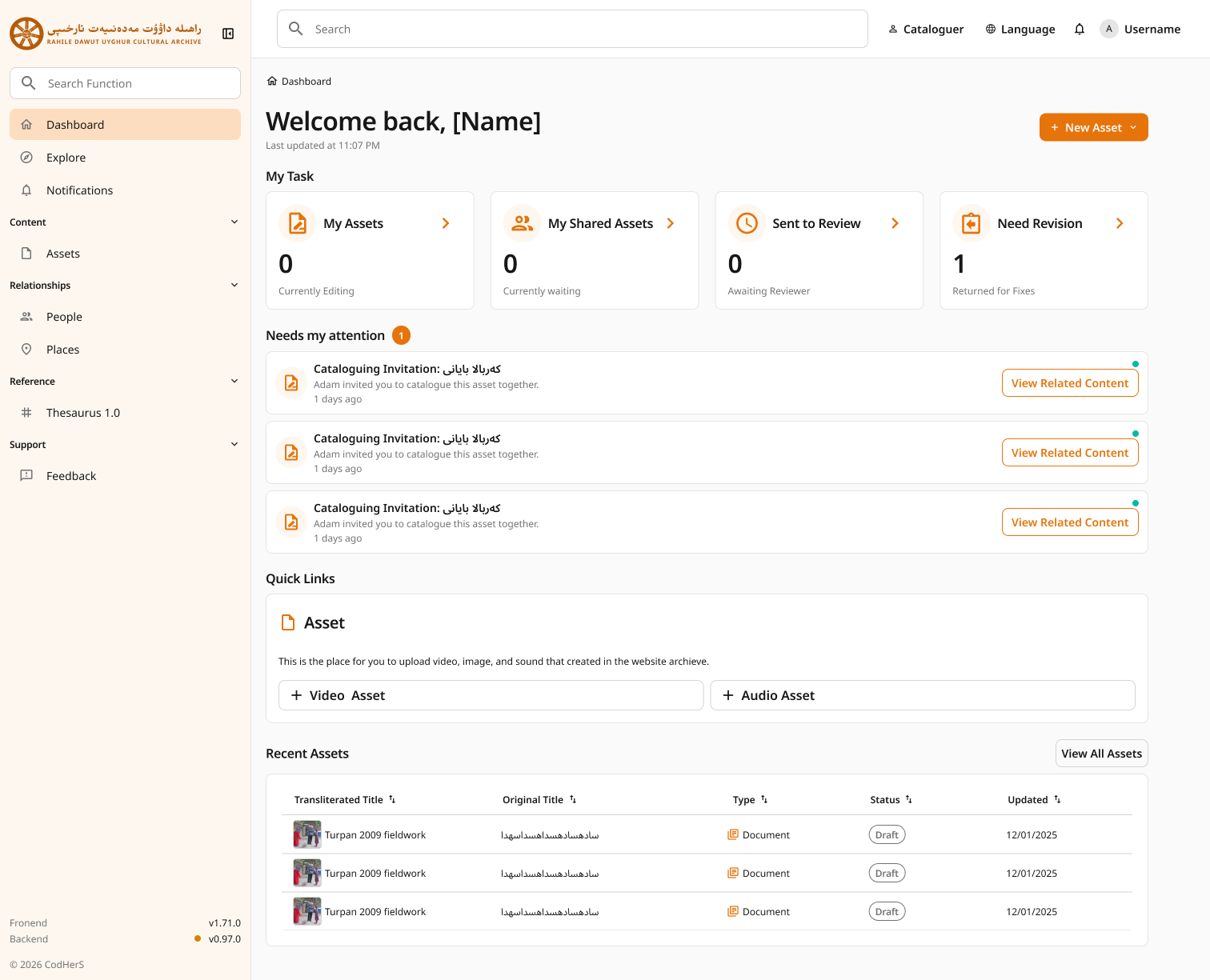
The Dashboard is the home page of Sanduq. It is the first webpage that opens after a user signs in to Sanduq. For cataloguers, the dashboard looks as follows:
Now, let's learn the cataloguer dashboard in detail.
Widgets
The 4 widgets on the cataloguer dashboard are:
- My Assets: These are the Assets which are created by the cataloguer and are drafts (i.e., they have not been sent for review yet).
- My Shared Assets: These are the Assets which are both created by & supported by the cataloguer.
- Sent to Review: These are the Assets which are now in review and hence are locked for all cataloguers.
- Needs Revision: These are the Assets which were rejected by the reviewers and sent back for revision.
Needs My Attention
This section on the dashboard features the immediate notifications to address for cataloguers. They can be:
- Invite Notifications: when cataloguers require help with completing an asset, they can invite other cataloguers. If a cataloguer invites you, it will show in this section of the dashboard.
- Returned Assets: These are assets that need revision because they were rejected in the review process.
Quick Links
This section on the dashboard is designed to help you create Assets without delay. Under the heading "Asset", you will find two shortcut buttons:
-
+ Video Asset
-
+ Audio Asset
These buttons take you directly to their respective creation forms, allowing you to quickly begin cataloguing new content.
Recent Assets
This section contains the recent assets in Sanduq. The assets displayed here and ones that have either the user as a main cataloguer, a supporting cataloguer, or the assets that have "complete" status (i.e., assets that were approved by the reviewers).