3.3 Assets Page
Abstract
This tutorial explains the Assets page in Sanduq in detail. It walks through each feature available to cataloguers and shows how to use them effectively to improve productivity.
First Look
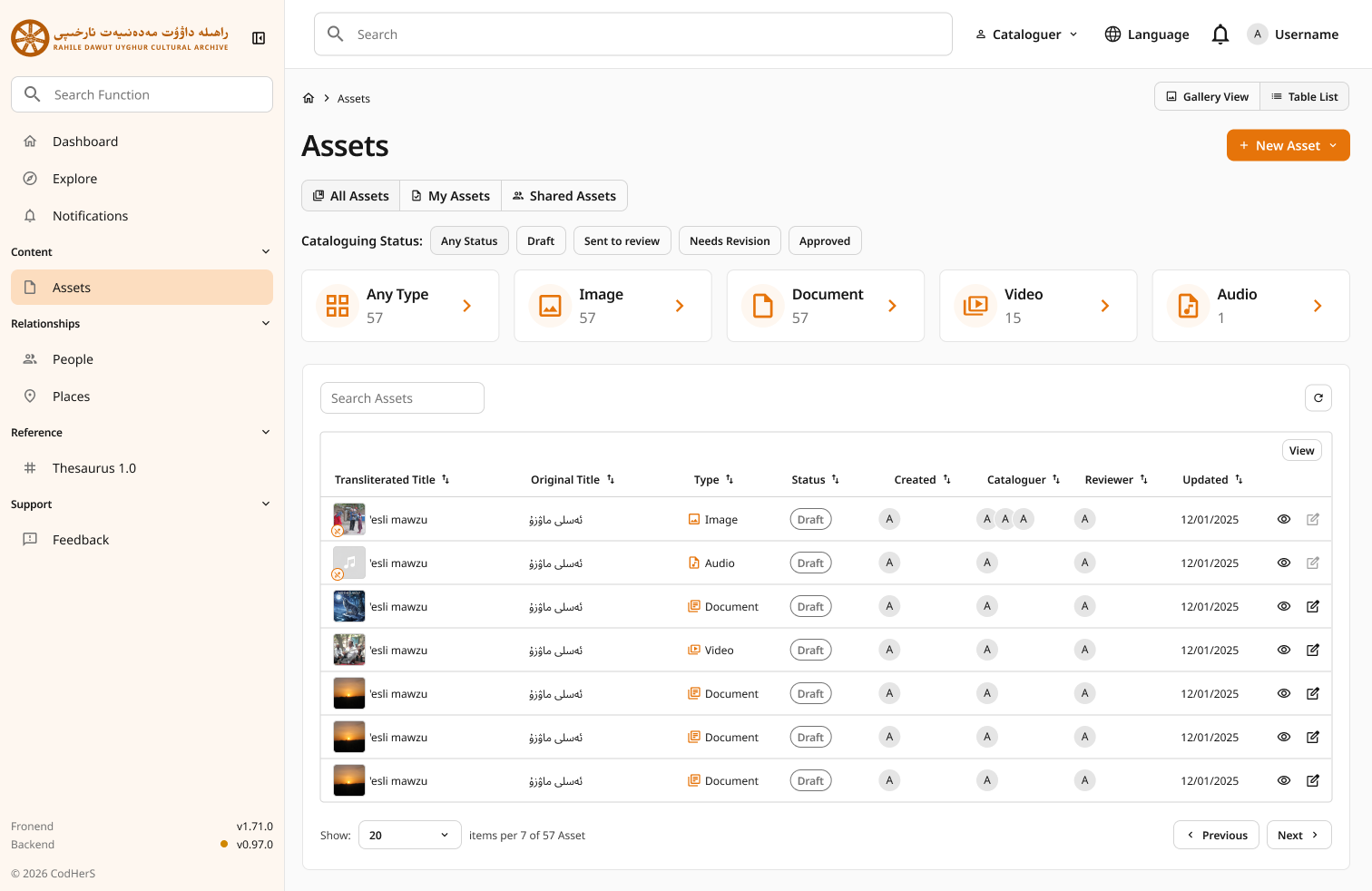
The assets page is the most important page for cataloguers. This is where cataloguers can create and manage the assets in Sanduq. It looks as follows:
3 Tabs
The three main tabs right below the "Assets" heading are:
-
All Assets: this is a concatenation of assets where:
-
The user is a main cataloguer
- The user is a supporting cataloguer
-
The assets which have a "complete" status, meaning that they have been approved by the reviewers.
-
My Assets: this is a list of assets which has the user as the main cataloguer.
- Shared Assets: this is a list of assets which has the user as the supporting cataloguer.
Cataloguing Statuses
The cataloguing status filters have the values:
- Any Status: no filters are applied.
- Draft: a draft means that the asset has not been sent for review yet.
- Sent to Review: this is the status of assets which have been sent to review and still are pending for review. In this status, the assets are locked, i.e., cataloguers cannot edit them.
- Needs Revision: an asset is of this status when it has been rejected by a reviewer.
- Approved: an asset is of this status when it has been approved (or accepted) by a reviewer.
Note
It is important to note that even if no filters are applied (i.e., the cataloguing status filter is set to the default "Any Status"), there is still an implicit filter applied which only shows assets where the user is a main cataloguer, supporting cataloguer, or if the asset has a "complete" cataloguing status (i.e., it has been approved by a reviewer).
The reason for this implicit filter is to keep Sanduq clear of any clutter that may build up during the cataloguing process. This way, we are only showing the cataloguers what they need to see which are the "complete" assets and assets where they are involved (i.e., where they are either a main cataloguer or supporting cataloguer).
Widgets
The widgets are filters:
- Any Type: no filters are applied.
- Image: this is to filter Image Assets (i.e., assets which have the media file as an image).
- Document: this is to filter Document Assets (i.e., assets which have the media file as an document).
- Video: this is to filter Video Assets (i.e., assets which have the media file as a Video).
- Audio: this is to filter Audio Assets (i.e., assets which have the media file as an Audio).
Assets Table
The assets table is used to show the list of assets which are, once again, "complete" or assets where the user is the main cataloguer or supporting cataloguer.
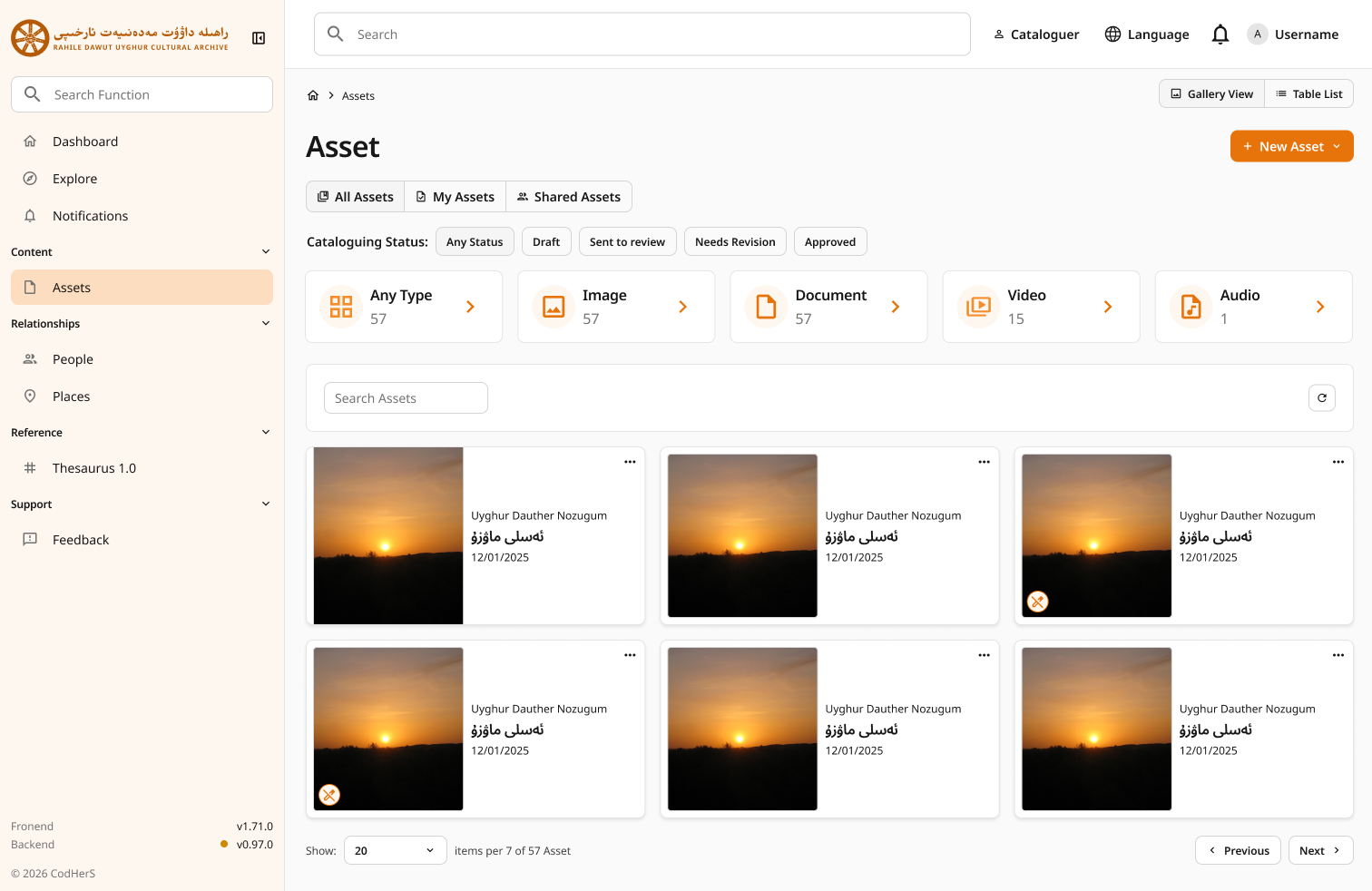
You can view the list of assets in two views:
-
Table List
-
Gallery View
Key Features
-
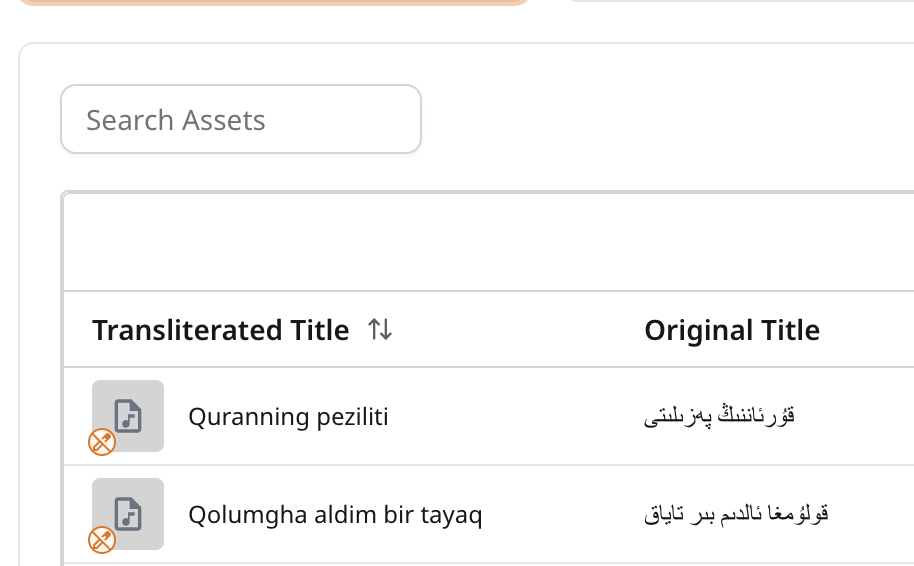
There is a Search Assets bar where you can type to filter the assets to quickly find what you want.
-
The " < Previous " and " Next > " buttons at the bottom right of the assets table can be used to navigate through the paginated assets.
-
You can show 10, 20, 50, or 100 assets per page at once by clicking on the number at the text "Show: {select number} items per x of y Asset"