3.4 Creating a Video Asset (Part-1)
Summary
This tutorial elucidates the first part in creating a video asset- navigating to the create video asset form, uploading a media file, adding the metadata, and what to do after that.
Opening the Form
First, navigate to the Assets Page by clicking on the "Assets" button on the sidebar.
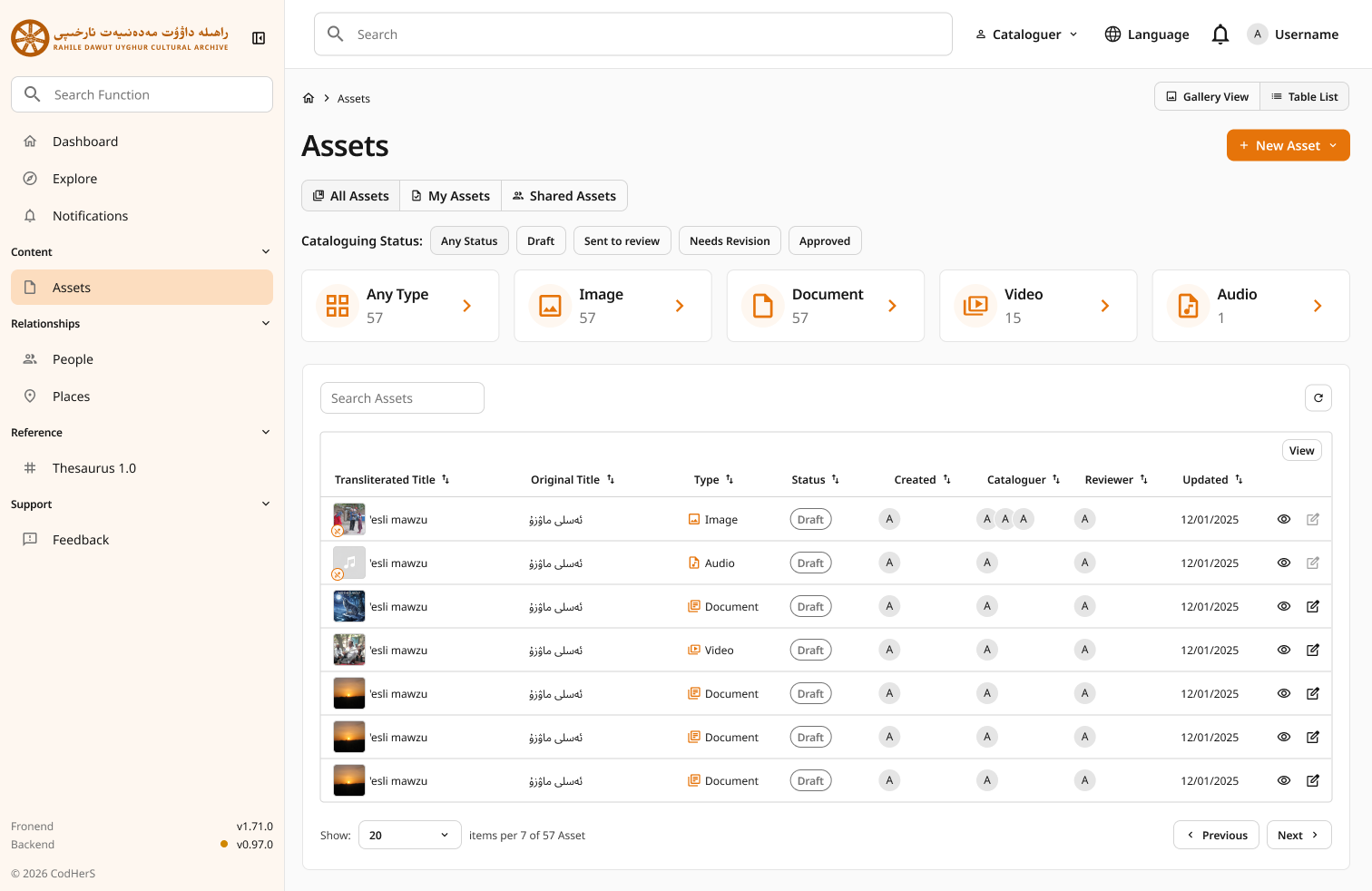
Next, click on the + New Asset button on the top right to open the Asset Types drop-down. You will be prompted with four options- Document, Video, Audio, & Image, as shown below.
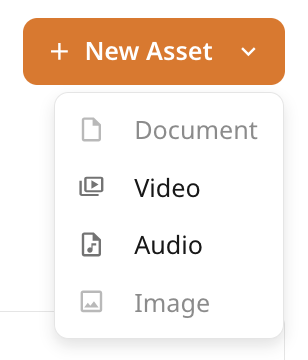
These are, if you remember from the Core Concepts section, the 4 different types of Assets. In this tutorial, we will be focusing on the Video Asset. Hence, we click "Video".
Create Video Asset Form
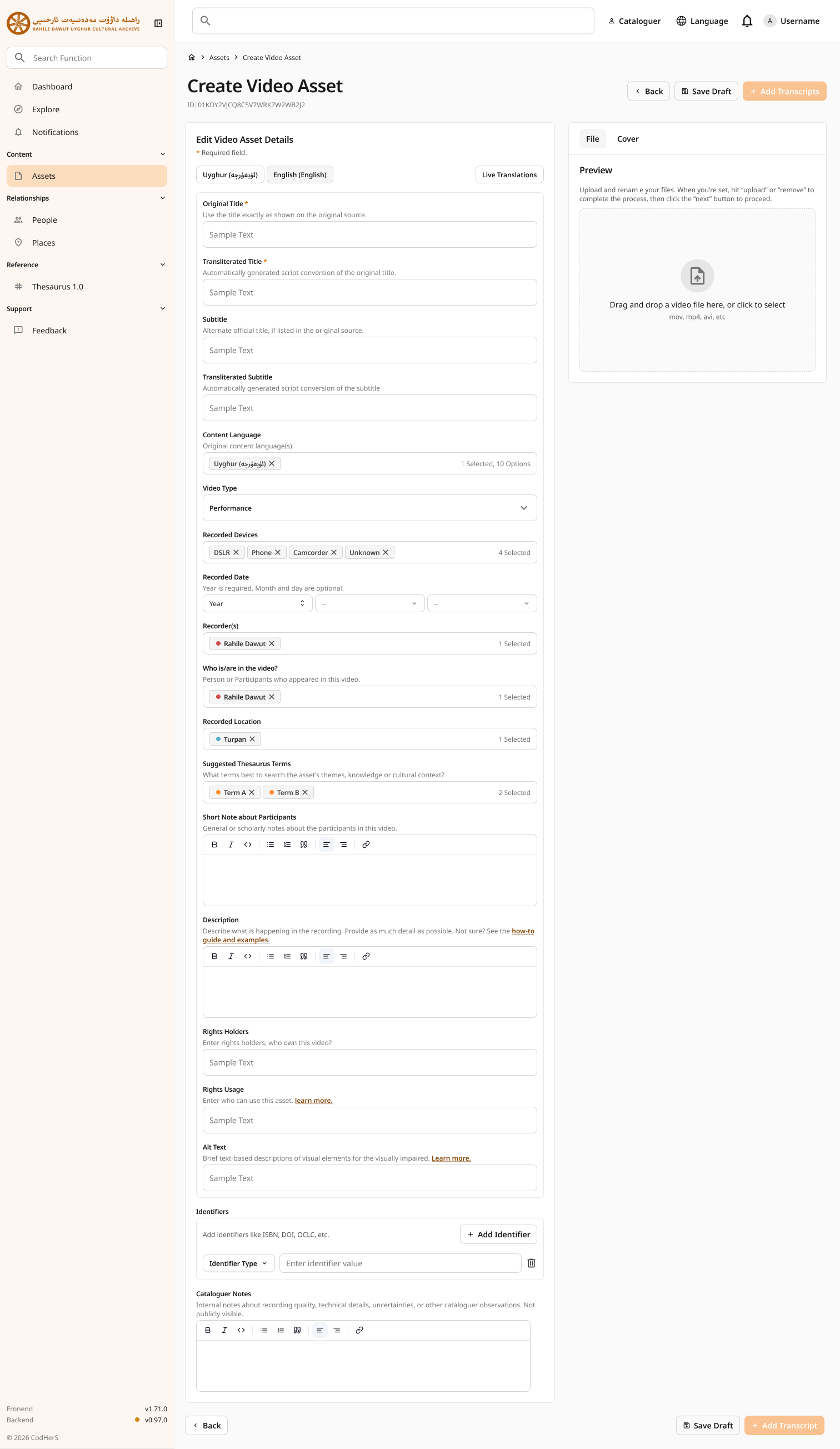
We understand that the first time you look at this form, it might feel overwhelming, especially if you've never filled out long forms yourself.
However, if you take a moment to look at the Create Video Asset form (and if you thoroughly studied the Core Concepts), you will realize that you are already familiar with the form-fields (the metadata attributes) in this form.
Note
You can click here to navigate to the Metadata Attributes section of the 2.2 Assets tutorial as a reference for filling out the Create Video Asset form.
File Upload
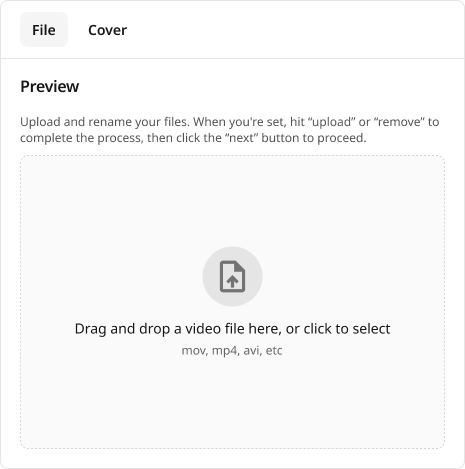
The first thing you must do as a cataloguer is upload the media file of the Asset. You can do so by dragging and dropping the media file (in this tutorial's case, a video file) into the File Upload Section (shown below) or by clicking on it to select from your files.
Filling out the Form
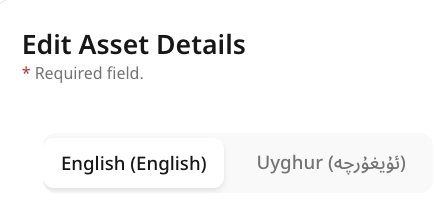
Before starting to fill the form, you must choose between the two language forms - the "English (English)" form and the "Uyghur (ئۇيغۇرچە)" form.
Warning
If you want to type the metadata in English, please make sure you are on the English form and if you want to type the metadata in Uyghur, please make sure you are on the Uyghur form.
The reason for the separate forms is to store the metadata (the form-fields) in both english and uyghur. This would be greatly beneficial in terms of abundance of information, discovery, contextualization, and more.
Now, for the form itself, the only mandatory form-fields are:
- Original Title: The title as it is exactly shown on the original source.
- Transliterated Title: The transliterated latin text of the original title (auto-generated in real-time as original title is typed, but can be modified later).
All other form-fields are optional to fill. However, as a cataloguer, it is your responsibility to fill as many form-fields as you possibly can to ensure a metadata-rich Sanduq.
What Next?
After uploading the media file and filling out the metadata, you are more than halfway through with the cataloguing process.
In the next tutorial- Creating a Video Asset (Part-2), we will continue the cataloguing process where we will introduce the transcripts page.